Telegram Bot
Buy energy without leaving Telegram. @tronagg_bot runs on the same routing engine as the Workspace, so you get the live best price in a single chat — no dashboard, no browser.
Start
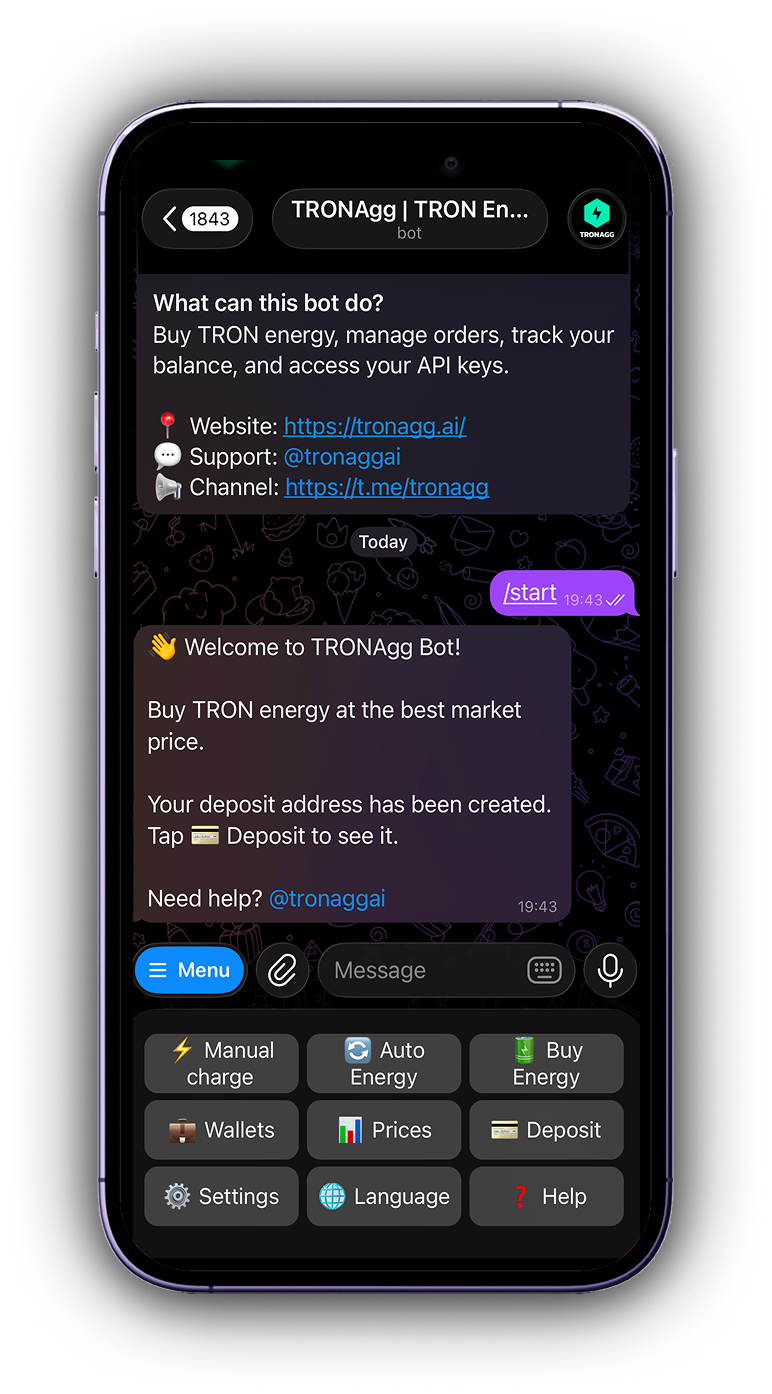
Open @tronagg_bot and press Start. There is no sign-up: your first message creates your account and a personal TRX deposit address. Tap 💳 Deposit to see it.
One TRX balance pays for everything you do in the bot. Deposits credit automatically in about 10 seconds and the bot messages you when they land. Transfers under 0.1 TRX are ignored, so don't test with dust.
The main menu
The keyboard under the message box is always available — six buttons, three per row:
| Button | What it does |
|---|---|
| ⚡ Manual charge | Top a wallet up to a target energy level |
| 🔄 Auto Energy | Keep energy on an address so its USDT transfers stop burning TRX |
| 🔋 Buy Energy | Buy energy by transaction count or by amount |
| 💼 Wallets | Save and reuse TRON addresses |
| 💳 Deposit | Your balance and deposit address |
| ☰ More | Radar, prices, orders, API keys, language and help |
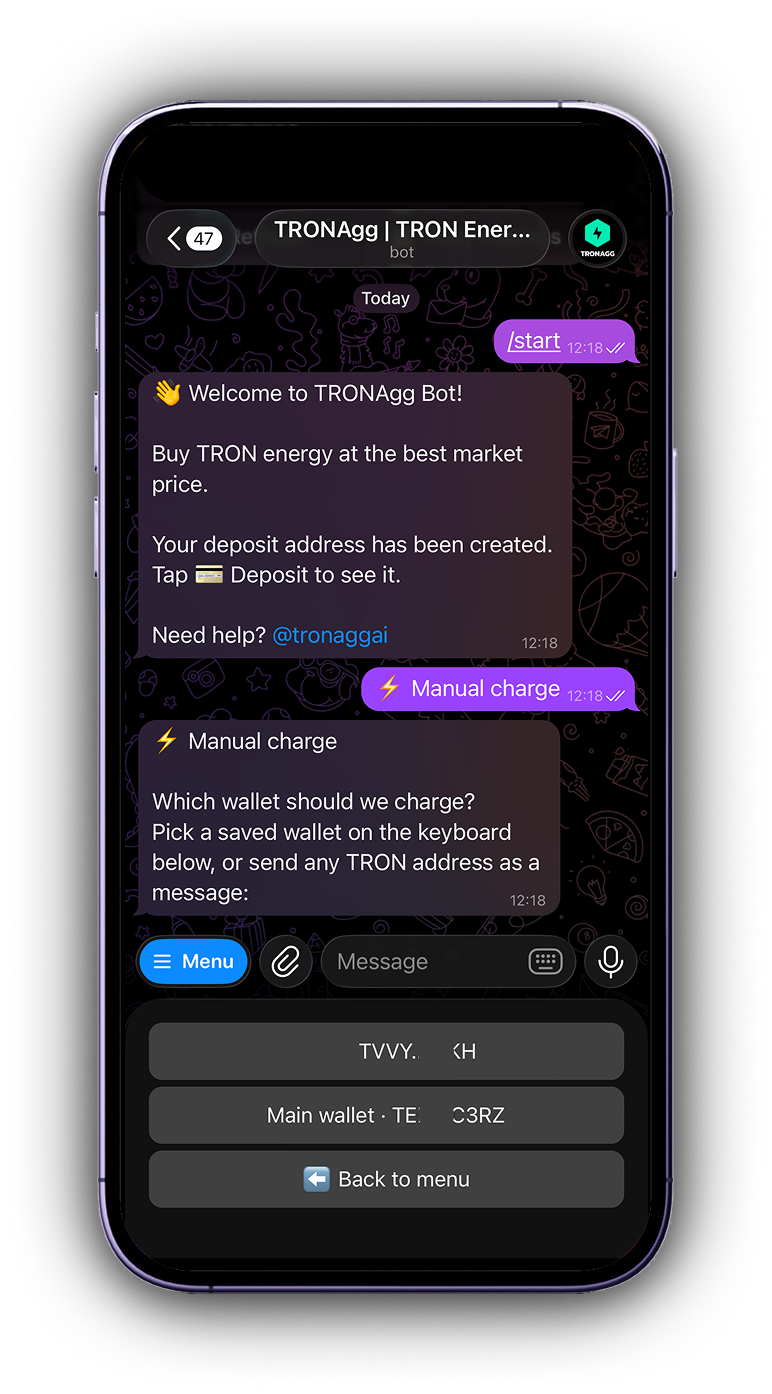
Inside any flow the keyboard changes — usually into your list of saved wallets. ⬅️ Back to menu always brings the main menu back.
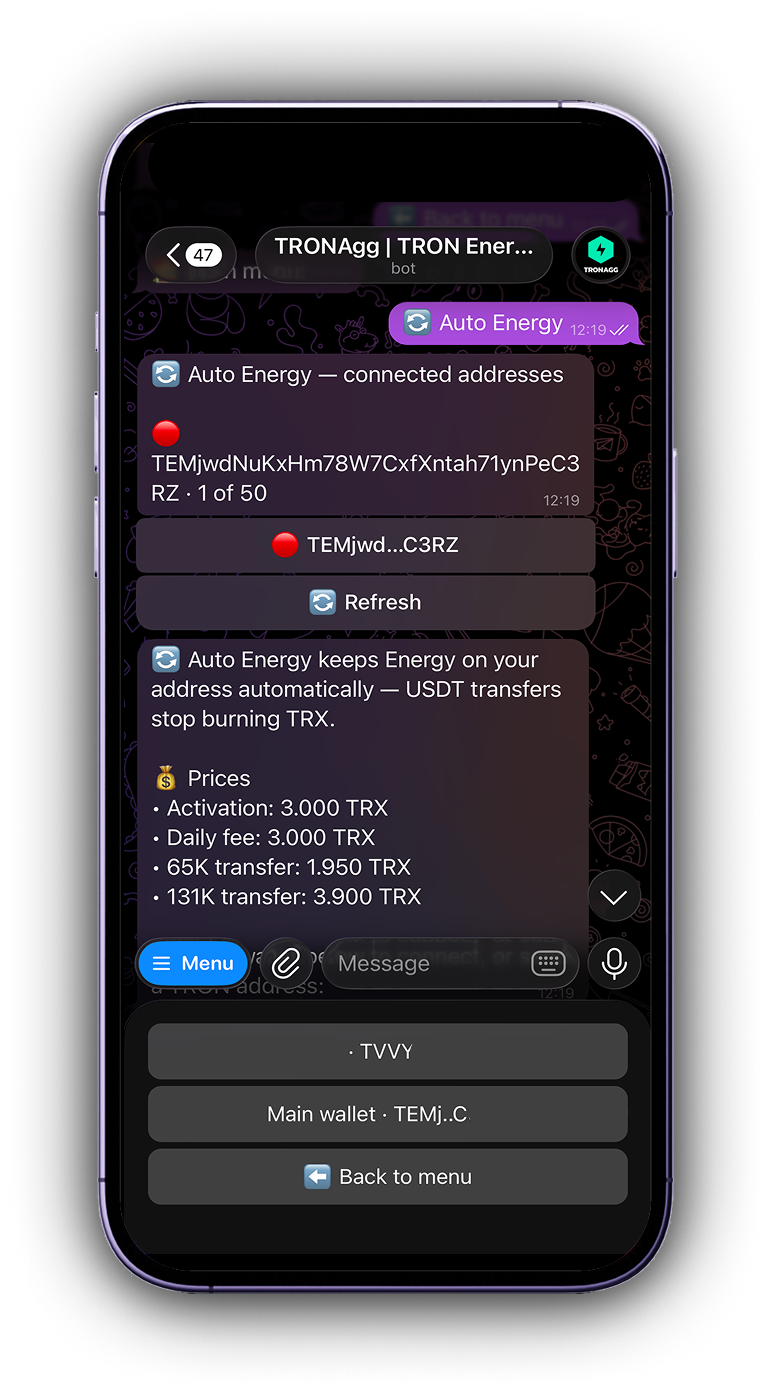
Here's the bot at the start, a manual charge, and Auto Energy:
Slash commands
Every button has a command, and a command works mid-flow — it cancels whatever wizard you are in and jumps straight to that screen.
| Command | Opens |
|---|---|
/start | The main menu |
/charge | Recharge a wallet to a target |
/auto | Manage Auto Energy |
/buy | Buy energy for any address |
/wallets | Manage saved wallets |
/prices | Check current prices |
/deposit | Top up your balance |
/settings | More sections |
/help | How the bot works |
⚡ Manual charge
Use this when a wallet needs to be topped up to a level rather than handed a fixed amount — you pay only for the energy it is missing.
- Tap ⚡ Manual charge. Pick a saved wallet from the keyboard, or send any TRON address as a message. A new address is saved automatically.
- The bot reads the wallet on-chain and shows its current energy, bandwidth and TRX.
- Choose a target: Up to 65k (a standard USDT transfer) or Up to 131k (enough for a recipient who has never held USDT). Each button shows the energy still needed and its price, recalculated at the moment you tap.
- Not sure which? 🤖 Auto-detect asks for the address you are sending USDT to and picks 65K or 131K based on whether it already holds USDT.
- Confirm the bill. Energy is delegated for 1 hour.
If the wallet already covers the target, the bot tells you so and charges nothing.
🔋 Buy Energy
Use this when you want a specific amount for a specific address.
- Tap 🔋 Buy Energy. The landing screen shows the live 1-hour price for one transaction, the unit price in sun, and the TRX rate.
- Send the receiver address, or pick a saved wallet.
- Choose how many transactions to cover — 1, 2, 3, 5 or 10 — each button priced live. One USDT transfer needs 1 transaction; a recipient with no USDT needs 2.
- Or tap 📊 Buy energy amount to choose 65,000 / 130,000 / 200,000 / 500,000 or type a custom amount.
- The bill shows the energy, the receiver, an activation fee if the receiver is not yet activated on-chain, the total, and your balance. Tap 💰 Pay from balance.
If your balance is short, the bot tells you exactly how much to send and to which address, then gives you a ✅ I've topped up — continue button that re-quotes at a fresh price.
On success you get an order ID and the order appears under ☰ More → 📋 My Orders. Energy is delegated for 1 hour — complete your transfers within that window.
🔄 Auto Energy
Auto Energy keeps energy on an address automatically, so its USDT and other TRC-20 transfers stop burning TRX. Instead of buying before each send, you connect the address once.
- Tap 🔄 Auto Energy. Connected addresses are listed first, each with its status (🟢 active, 🟡 activating, 🔴 stopped) and transfers used.
- Pick a wallet from the keyboard or send a TRON address to connect a new one.
- Set a transfer limit — 50, 100, 500 or ♾ No limit. Auto Energy stops on its own when the limit is reached.
- Confirm. The bill lists the one-time activation fee, the daily fee, and the per-transfer charge for 65K and 131K transfers, against your balance.
Your balance has to cover activation plus one daily fee plus one 131K transfer before it will activate. After that, each covered transfer sends you a message showing what was delegated and how many transfers are left.
Tap a connected address to open its card: ⏹ Stop ends it, ▶️ Reactivate brings a stopped one back (this charges activation again). Auto Energy also stops by itself if the balance runs low or the address goes quiet for a day.
Prices are set per plan and change with the market, so read the values the bot shows rather than quoting them from here. Full details: AutoEnergy.
💼 Wallets
Saved addresses so you stop pasting them. Tap 💼 Wallets to see the list, ➕ Add address to save one, or send any TRON address. Tapping a saved wallet opens a card with ⚡ Buy again, ✏️ Rename and 🗑 Delete. You can keep up to 20.
💳 Deposit
Your available balance and your deposit address, with 📋 Copy Address for a one-tap copy. Send TRX on the TRON network only, at least 0.1 TRX.
☰ More
Everything beyond the everyday actions lives one tap away. Tap ☰ More and pick a section:
- 📡 TRONAgg Radar — watch your addresses, get alerts and add energy when needed. See TRONAgg Radar.
- 📊 Prices — the current TRX rate, the 1-hour price for one and two transactions, and the unit price in sun. Below that, the last 24 hours as a min/average/max range with where the price sits now, plus the Auto Energy fees. ↻ Refresh re-reads everything.
- 🖥 Web workspace — opens your account on tronagg.ai, already signed in.
- 📋 My Orders — your order history, five per page, with amount, receiver, status, price and how long ago.
- 🔑 API Key — generate a key to use the REST API. A key is shown once, so save it immediately; you can hold up to three.
- 🌐 Language — switches the bot between English, 中文 and Русский. Everything — menu, flows, notifications — follows.
- ❓ Help — what each button does, plus support.
Notifications
Out of the box the bot messages you when a deposit is credited, when Auto Energy covers a transfer, and when an Auto Energy subscription stops. Order status changes, balance alerts and the daily summary are off by default and can be switched on in the Workspace.
White-label bots. Resellers run the same bot under their own brand, so the flows above are the same, but the operator chooses which features are on, sets their own prices and support contact, and may offer only one language. See the reseller guide.
→ New to buying? The same flow in the dashboard is covered in Your First Purchase.