Getting Started
Five steps, under five minutes. By the end, every TRC20 transfer from your wallet will automatically get energy at market price — no manual renting, no TRX burned.
1. Open the Workspace
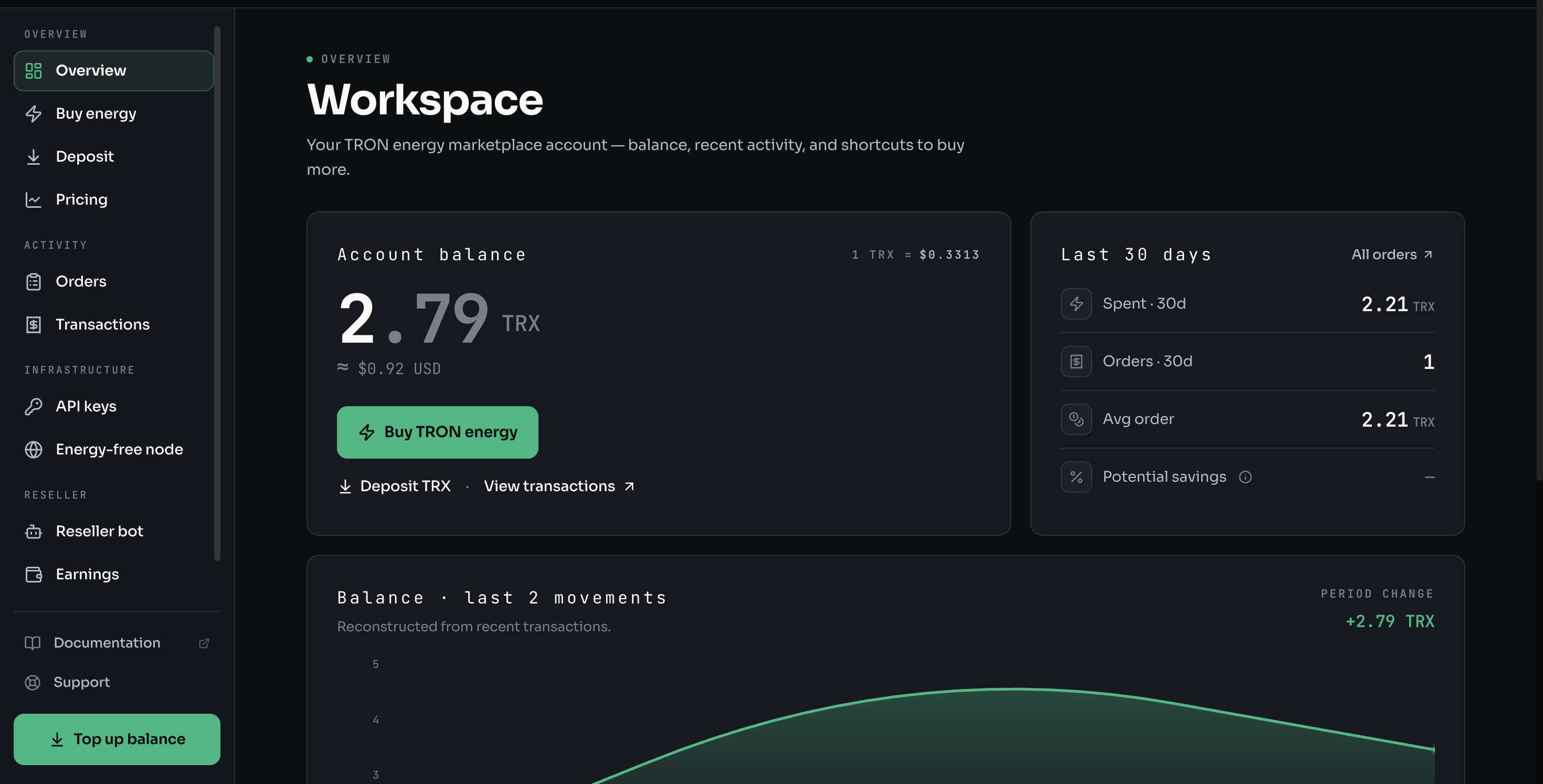
Sign in at tronagg.ai/workspace with Google, Telegram, or your wallet. The Overview shows your account balance, recent activity, and a shortcut to buy energy.
2. Deposit TRX
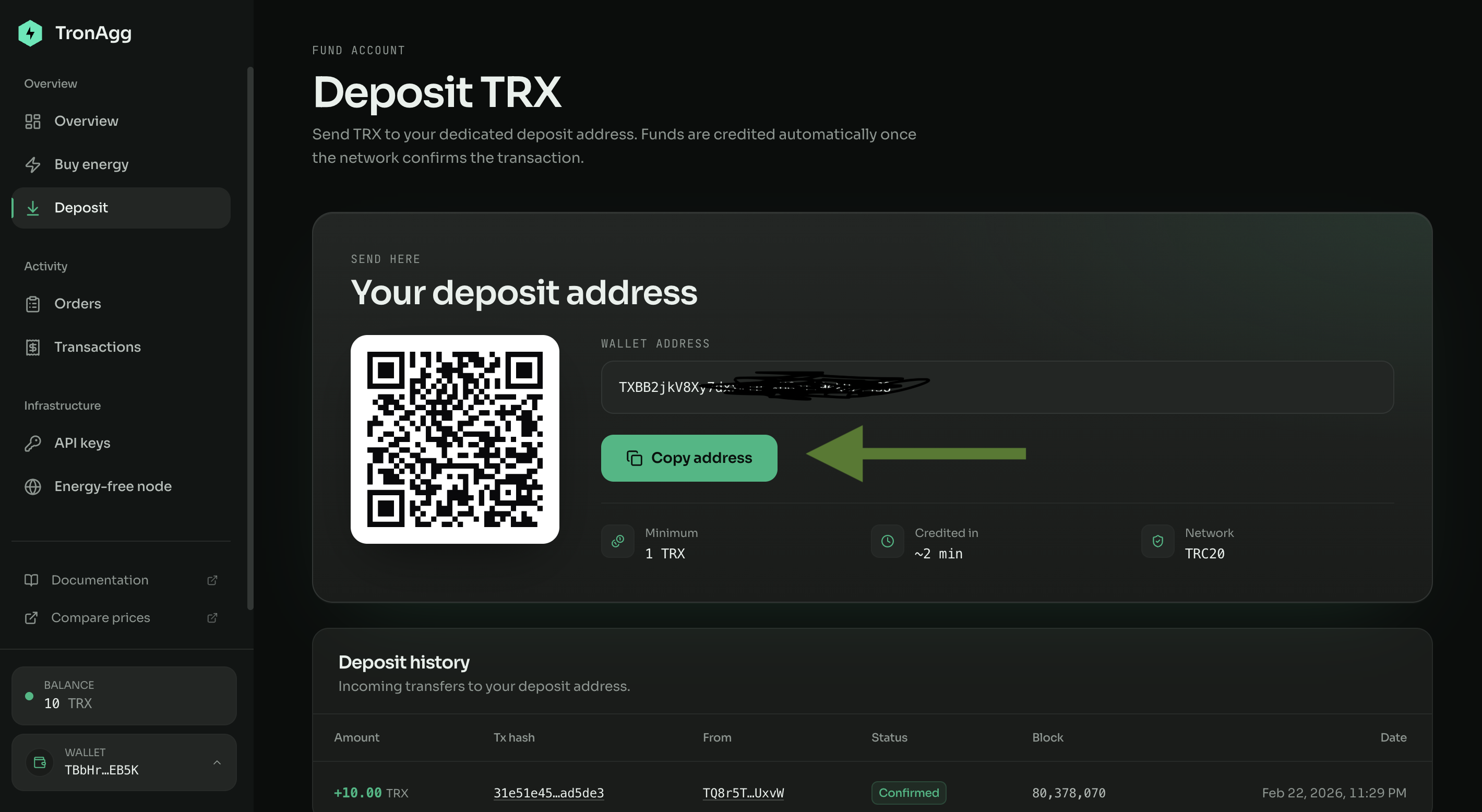
You need TRX on your TRONAgg balance to pay for energy the node buys automatically.
- In the dashboard, navigate to Deposits
- Send TRX to the deposit address shown
- Wait for confirmation (usually under a minute)
A single USDT transfer costs roughly 2 TRX through the Energy-Free Node. So 100 TRX covers about 50 transfers. Start small — you can always top up.
3. Enable the Energy-Free Node
- Go to dashboard.tronagg.ai/node
- Click Enable Node
- Your personal node URL appears — something like
https://node.tronagg.ai/YOUR_SECRET_KEY - Copy it

From this page you can also configure:
- Fallback policy — What happens when your balance is low (block the transaction or pass it through without energy)
- Address whitelist — Restrict which TRON addresses can use your node
- Key regeneration — Instantly invalidate the old URL if it's been exposed
The node URL is tied to your TRONAgg balance. Treat it like an API key — don't share it publicly. If it leaks, regenerate it from the dashboard.
4. Configure your wallet
Paste the node URL into your wallet's custom TRON node setting. Pick your wallet:
- TronLink — Browser extension and mobile (most popular)
- Trust Wallet — Mobile app
- Other wallets — Generic guide for any compatible wallet
Building an app? See the App Integration guide — it's a one-line config change.
5. Send a transfer
That's it. Send USDT (or any TRC20 token) the way you always do. Nothing changes in your workflow — the node handles energy behind the scenes.
Verify it worked:
Check the Activity Log in your TRONAgg dashboard. Every transaction through your node is logged with the energy purchased, the cost, and the transaction hash.
You can also look up the transaction on Tronscan — it should show delegated energy instead of burned TRX.
What's next
You're set up. Here are a few things worth knowing:
- Is this safe? — Your keys never leave your device. Here's exactly why.
- FAQ — Pricing, supported tokens, troubleshooting.
- App Integration — Using the node in your backend or bot? One-line setup for tronweb.js and tronpy.