Getting started
Four steps, about five minutes. At the end, your addresses are watched and the next deposit on any of them reaches your Telegram or your webhook.
1. Unlock TRONAgg Radar
Sign in at tronagg.ai/workspace and open TRONAgg Radar → Addresses in the sidebar.
Radar is free, but it needs a real account. Either one unlocks it:
- Sign in with Google, or
- Deposit at least 1 TRX to your TRONAgg balance. What counts is your confirmed deposits minus withdrawals from your balance.
The deposit isn't a fee: it stays on your balance and pays for Energy if you turn Energy on. Until Radar is unlocked, the page shows Unlock TRONAgg Radar with a Deposit TRX button.
Scenarios that add Energy pay for it from your TRONAgg balance. Top up before you start, so the first deposit doesn't have to wait. Watching and alerts work with an empty balance.
2. Add your addresses
Until you add your first address, the Addresses page explains what Radar does and offers the quickest ways in: tick receivers of your Energy orders, paste a list, or use the API.
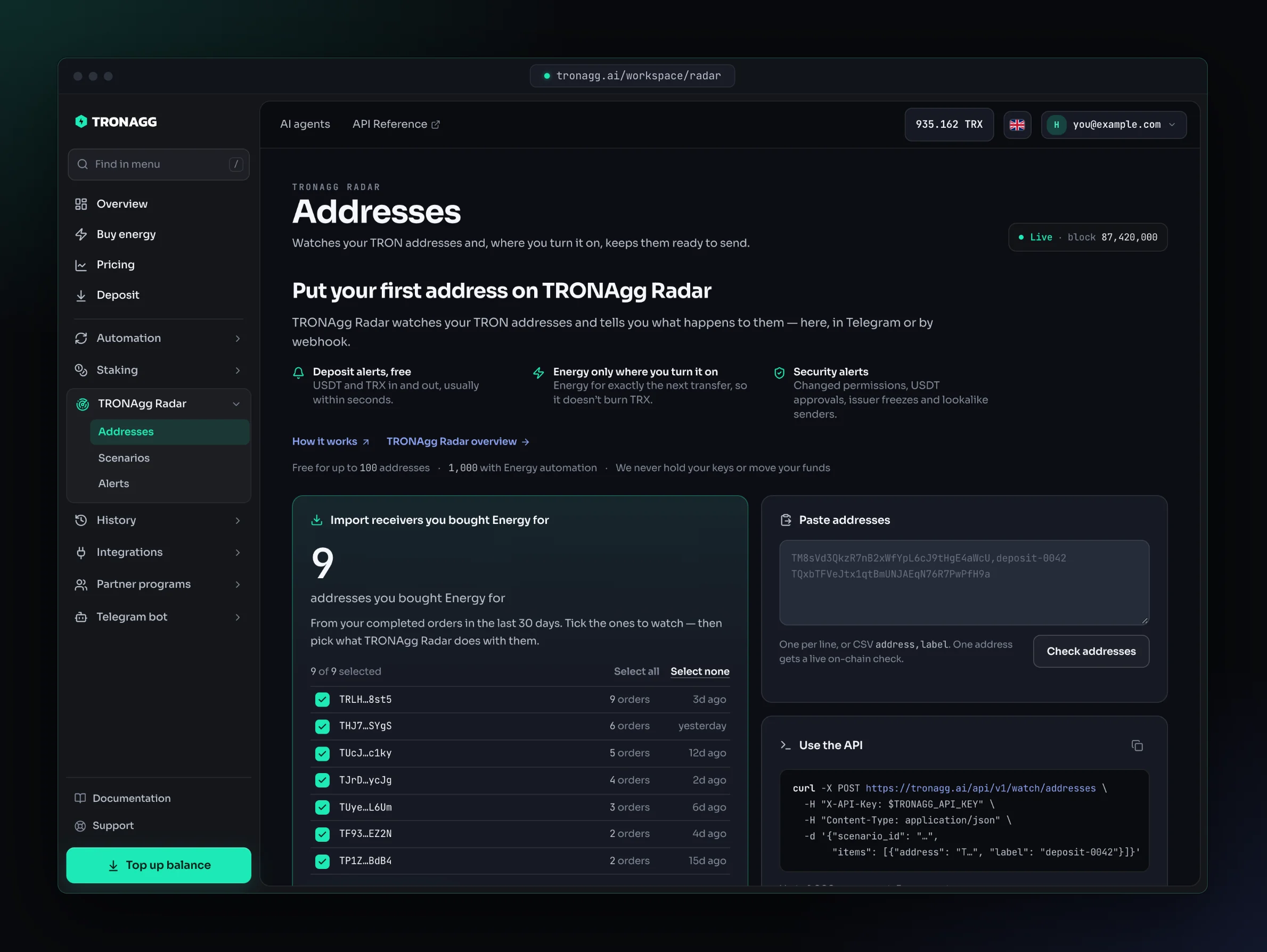
Click Add addresses. The panel has two steps: Addresses, then Scenario. Bring the addresses in one of three ways:
| Way | How | Good for |
|---|---|---|
| Paste | One address per line. Optionally add a label and an external ID after commas: TXKc3d5gEqvKEayX9LySXNS5RLf4qDDEb1,deposit-0042,invoice-4821. | A few addresses, or a column copied from a spreadsheet. |
| Upload CSV | Columns address,label,external_id. Comma, semicolon or tab separated. | Hundreds or thousands of addresses. |
| Import | The receivers of your completed Energy orders from the last 30 days. | Addresses you already buy Energy for on TRONAgg. |
Import lists each receiver with how many orders you placed for it and when. Tick the ones to watch; addresses you already watch are marked and skipped.
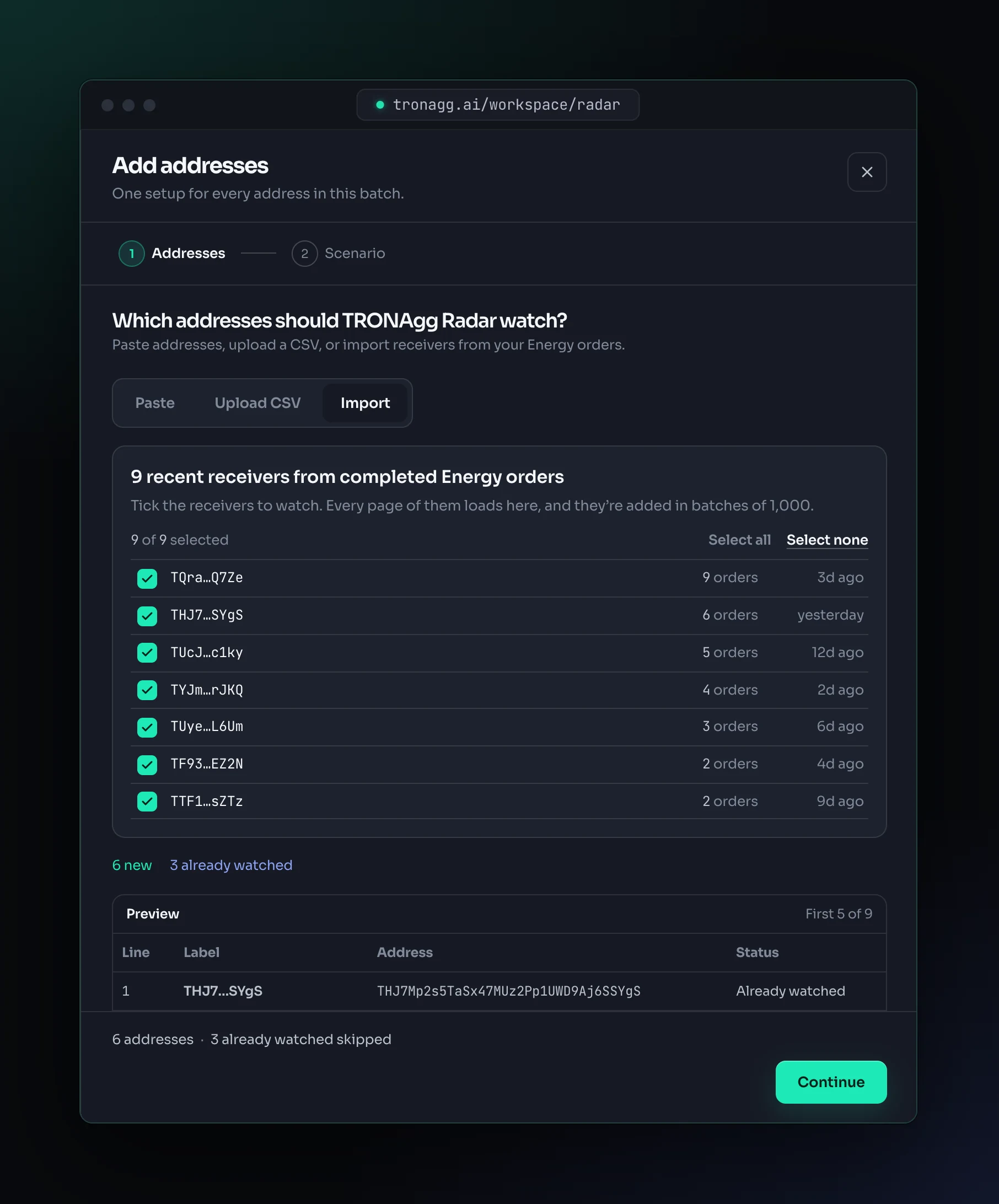
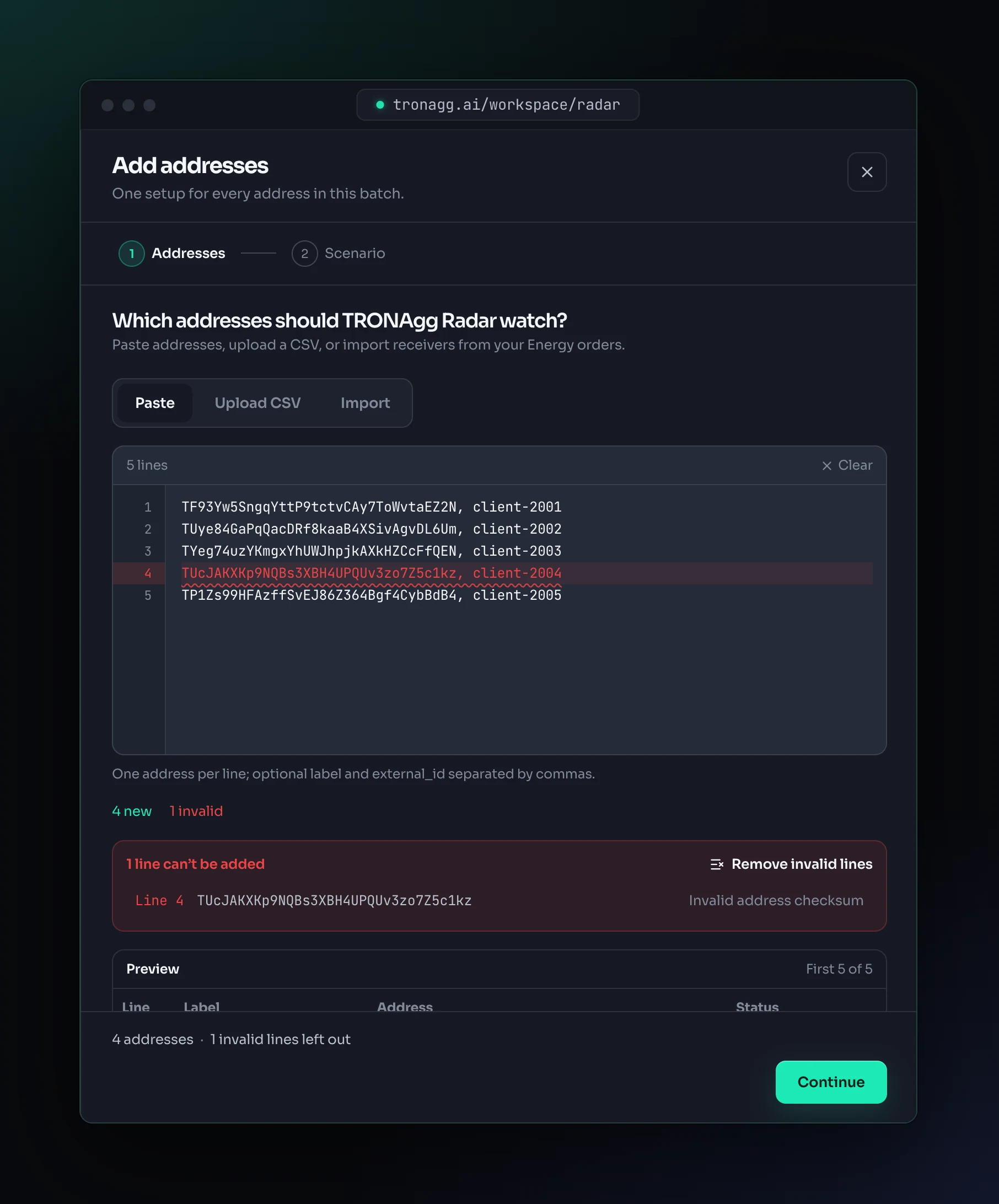
Radar checks every line as you go:
- Invalid lines are marked with the reason: not a TRON address, an Ethereum address, the wrong length, a bad checksum, a label longer than 80 characters or an external ID longer than 128. Remove invalid lines drops them in one click.
- Already watched addresses are skipped. Choose Move to this scenario to move them instead; an address is never watched twice.
- Duplicates in your list are collapsed, so each address is added once.
When you add a single address, Radar also checks it live on the chain and shows whether it's activated, and its TRX, USDT and Energy.
Labels are optional. Without one, Radar shows the short address (TXKc…DEb1). The external ID is your own reference, such as a customer or an invoice number. It must be unique among your watched addresses and is included in every webhook about the address.
There's no size limit on one batch: Radar adds a long list 1,000 addresses at a time and shows the progress. Your address limits still apply.
3. Choose what Radar does
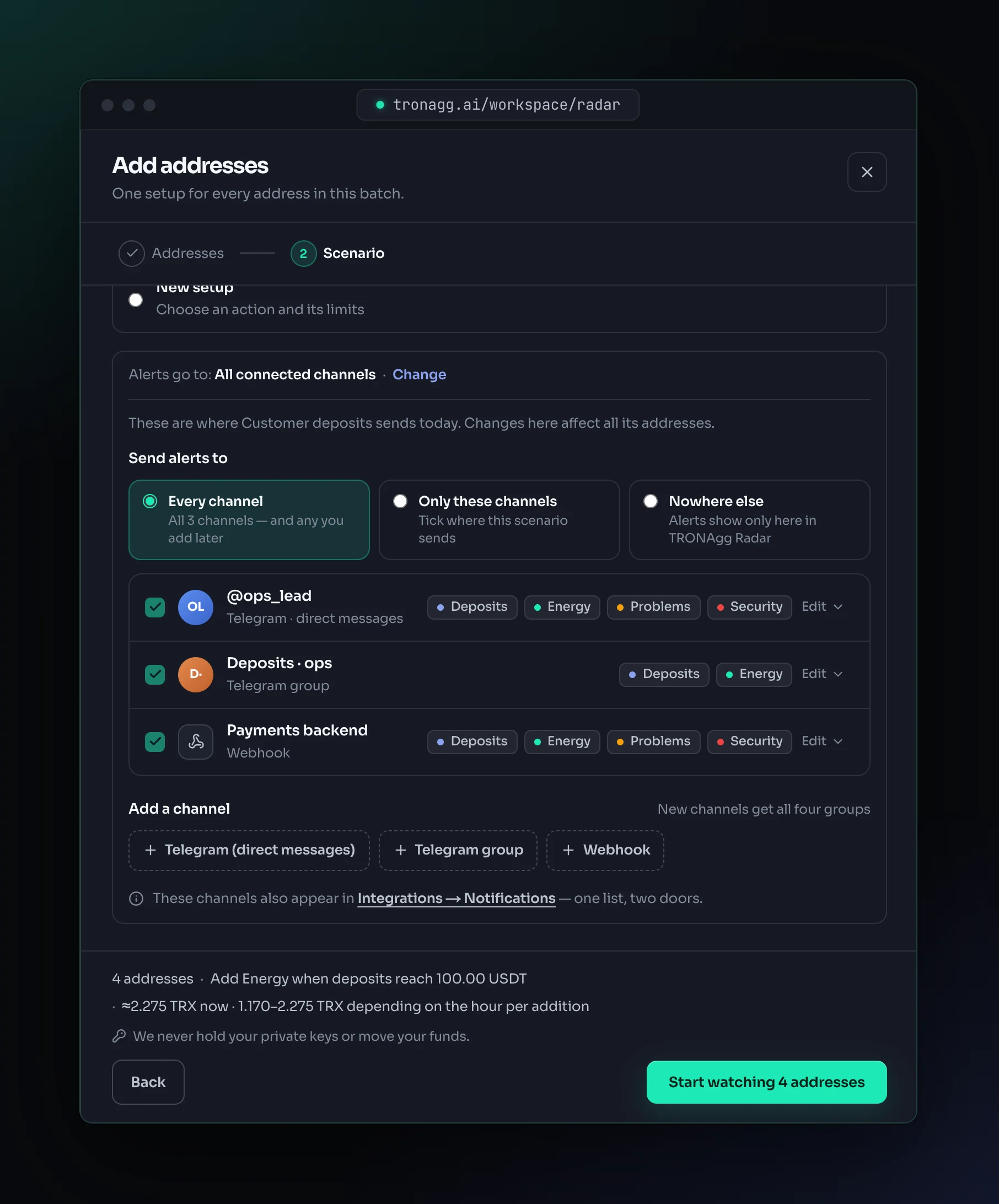
The second step, Scenario, asks What should TRONAgg Radar do? and puts every address of the batch in one scenario. If you already have scenarios, pick one from the list (it keeps its settings), or choose New setup:
- What should TRONAgg Radar do?
- Only alert me: free. Alerts only, never buys Energy.
- Add Energy when USDT arrives: choose when deposits reach 10, 50, 100 (the default) or your own amount. Radar counts USDT that arrives after the address joins the scenario and isn't swept yet; USDT already on the address doesn't count.
- Add Energy after each transfer: for wallets that send often.
- Energy each time, for the two Energy actions: 65,000 if the transfers go to a wallet that already holds USDT, 131,000 if they go to a wallet with no USDT. Why two amounts?
- Advanced stays closed, with safe defaults: 5 times per address a day and 50 TRX a day. Open it to change them, or to set working hours and an alert when USDT runs low.
Radar names a new setup for you, for example Deposit addresses. Rename it any time under Scenarios.
For an Energy action, the form shows what one addition costs: ≈ X TRX now and today's range, because the rate changes by the hour. You always pay the rate of the moment the Energy is added.
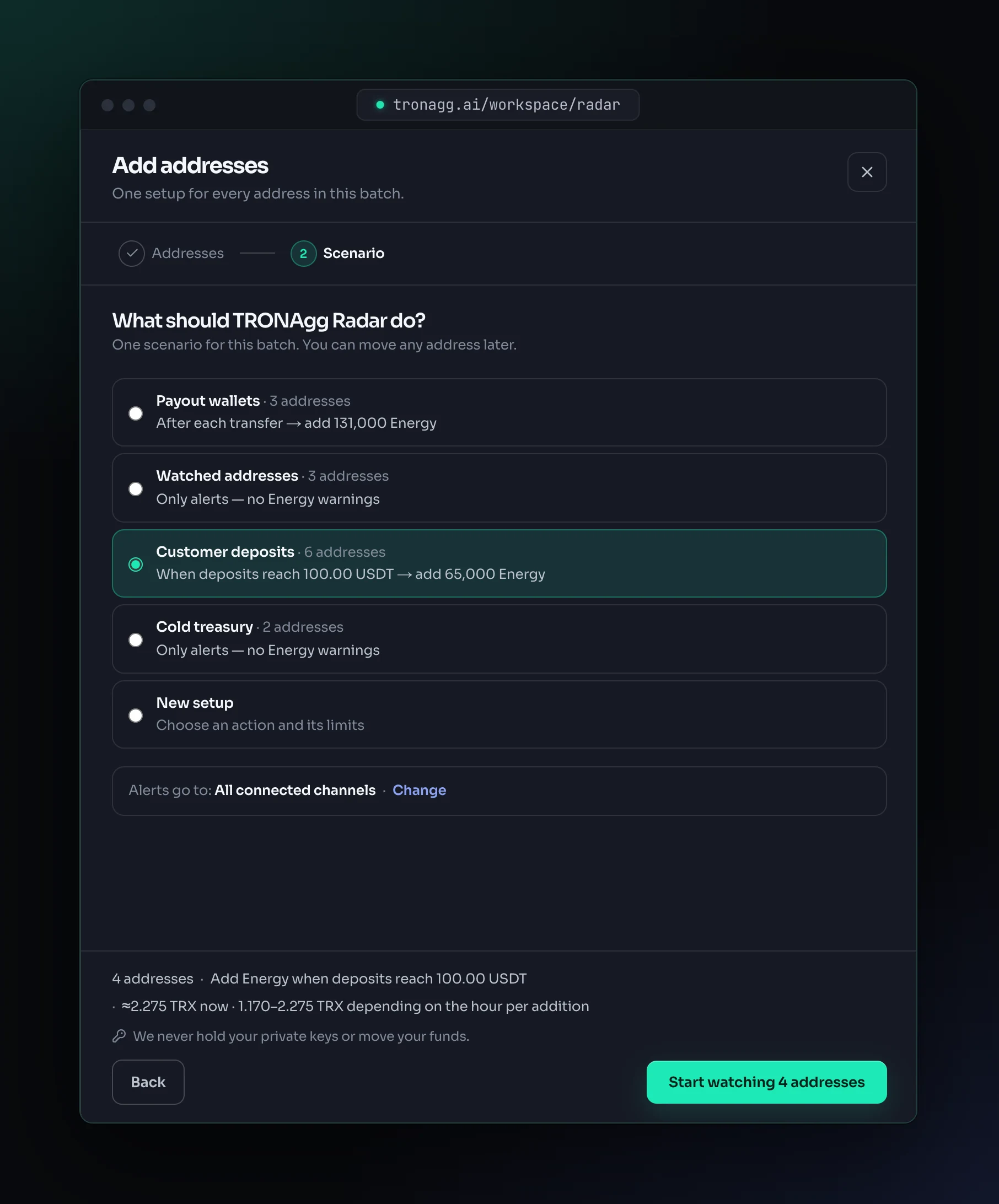
For Only alert me, there's one more switch: Warn when an address can't send without burning TRX. Leave it off if you only want to see deposits. Radar then doesn't track Energy on these addresses and never lists them as a problem. More on Energy warnings.
Where the alerts go
Below the scenario, Alerts go to shows where its alerts go: All connected channels, the names of the chosen channels, or Only in TRONAgg Radar. Click Change to pick:
- Every channel: all your channels, including the ones you add later.
- Only these channels: tick the ones you want.
- Nowhere else: alerts stay in Radar, with no messages and no webhook calls.
For a scenario you already have, the change applies to all of its addresses.
No channel yet? Add one right here:
- Telegram (direct messages): confirm the Telegram login in the tab that opens, then come back.
- Telegram group: Radar gives you a connection code; Telegram adds the TRONAgg notifications bot to the group you pick. Step by step.
- Webhook: an HTTPS URL on your server. Copy the signing secret when it appears: it's shown only once.
A new channel gets all four alert groups: Deposits & transfers, Energy added, Problems and Security. You can change that later in Alerts.
4. Start watching
Click Start watching N addresses. Radar confirms how many addresses are now on TRONAgg Radar and says in one line what happens next, for example: When deposits reach 100.00 USDT on these addresses, TRONAgg Radar adds Energy for the next transfer.
From the confirmation you can also:
- Send a test alert to check that your channels receive it.
- Download the rejected addresses as a CSV if some weren't accepted (for example, over your limit), fix them and add them again.
- Add the next batch via API: a link to the developer quickstart.
Then choose Add more for another batch, or Go to addresses.
What happens next
- Radar starts watching from the next block. Activity from before you added an address isn't alerted.
- A new address shows Checking… until Radar has read it from the chain for the first time.
- Every address has its own page with its readiness and a timeline of everything that happens. See Addresses.
Add an address from Telegram
In @tronagg_bot, open ☰ More → 📡 TRONAgg Radar → ➕ Add and send a TRON address. The bot checks it, asks what Radar should do (and, for Add Energy when USDT arrives, the threshold), shows the price of an Energy addition and starts watching. Alerts reach that chat once your Telegram is connected under Alerts in the workspace.
Add addresses with the API
Add up to 1,000 addresses per call with POST /api/v1/watch/addresses. The developer quickstart has a complete example in JavaScript and Python.